GPU Driver Optimization Guide (Universal Approach)
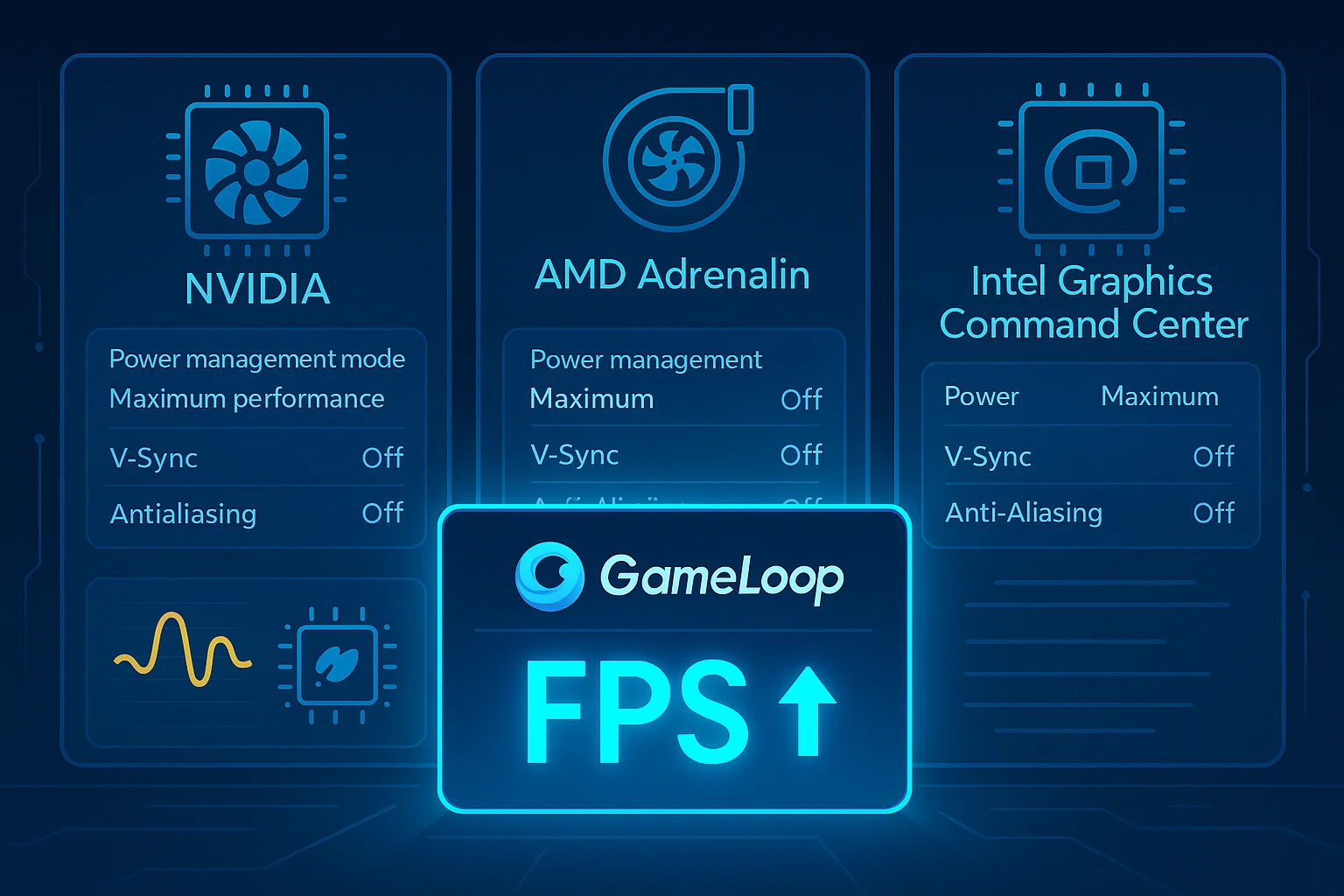
Configure your graphics driver for maximum performance in GameLoop — regardless of brand or model.
Why It Matters
Whether you use NVIDIA, AMD, or Intel graphics, your driver settings can drastically affect GameLoop’s:
Frame rate (FPS)
Input latency
Visual consistency
System temperature & power usage
The wrong settings (e.g., anti-aliasing, vertical sync) can reduce FPS or cause stuttering, especially in FPS games like Call of Duty Mobile.
General Rules for GPU Settings
Here are universal principles to follow when configuring any GPU control panel:
| Setting Type | Recommended Option | Why |
|---|---|---|
| Power Management | Maximum Performance | Prevents clock downscaling under load |
| Vertical Sync (V-Sync) | Off | Avoids input delay and frame locking |
| Anti-Aliasing / FXAA | Off | Increases FPS, less GPU load |
| Texture Filtering Quality | Performance / High Perf. | Prioritizes speed over visuals |
| Triple Buffering | Off | Reduces memory usage & input lag |
| Shader Cache | On | Helps reduce stutter during gameplay |
| Anisotropic Filtering | Off or App Controlled | Not essential for emulators |
| Surface Format Optimization | On (if available) | Boosts performance with minimal loss |
| Tessellation | Off / Override to Off | Unused in GameLoop; saves resources |
| Anti-Lag / Low Latency Mode | On (if available) | Reduces overall input delay |
Settings You Should Avoid or Be Careful With:
Overclocking: May lead to system instability or crashes during long gaming sessions.
Enhanced Sync / Radeon Chill / G-SYNC: These can cause frame inconsistencies or introduce latency.
Driver-enforced anti-aliasing: GameLoop doesn’t need it — it just wastes GPU cycles.
How to Apply These Settings
Open your GPU’s control panel (NVIDIA Control Panel, AMD Adrenalin, Intel Graphics Command Center).
Navigate to Global Settings or Application-specific settings.
If possible, locate
AndroidEmulatorEn.exeandaow_exe.exeApply the settings above globally or per application.
After Configuration
Restart your system or GPU driver to ensure settings are applied.
Launch GameLoop and monitor performance (FPS, stuttering, lag).
If issues arise (e.g. visual glitches), temporarily revert changes one by one.