
COD Mobile Smart Keymap Fix Tool for Tenstore Android Connect (MP, BR, DMZ)
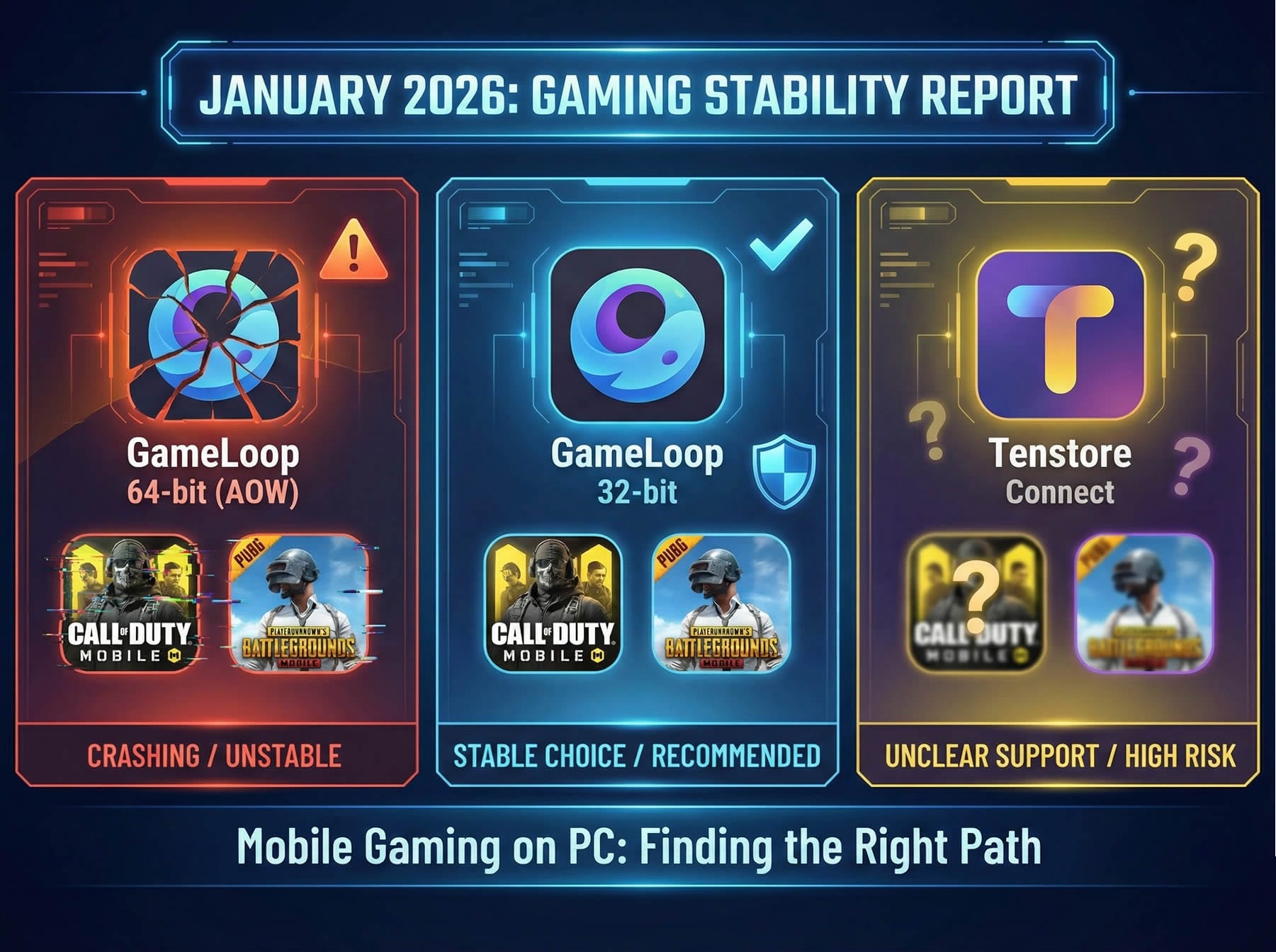
While we wait for official Call of Duty Mobile support to arrive on Tenstore Android Connect (the new GameLoop build with the new engine), many players have been looking for a stable alternative to the classic 32 bit and 64 bit GameLoop versions.
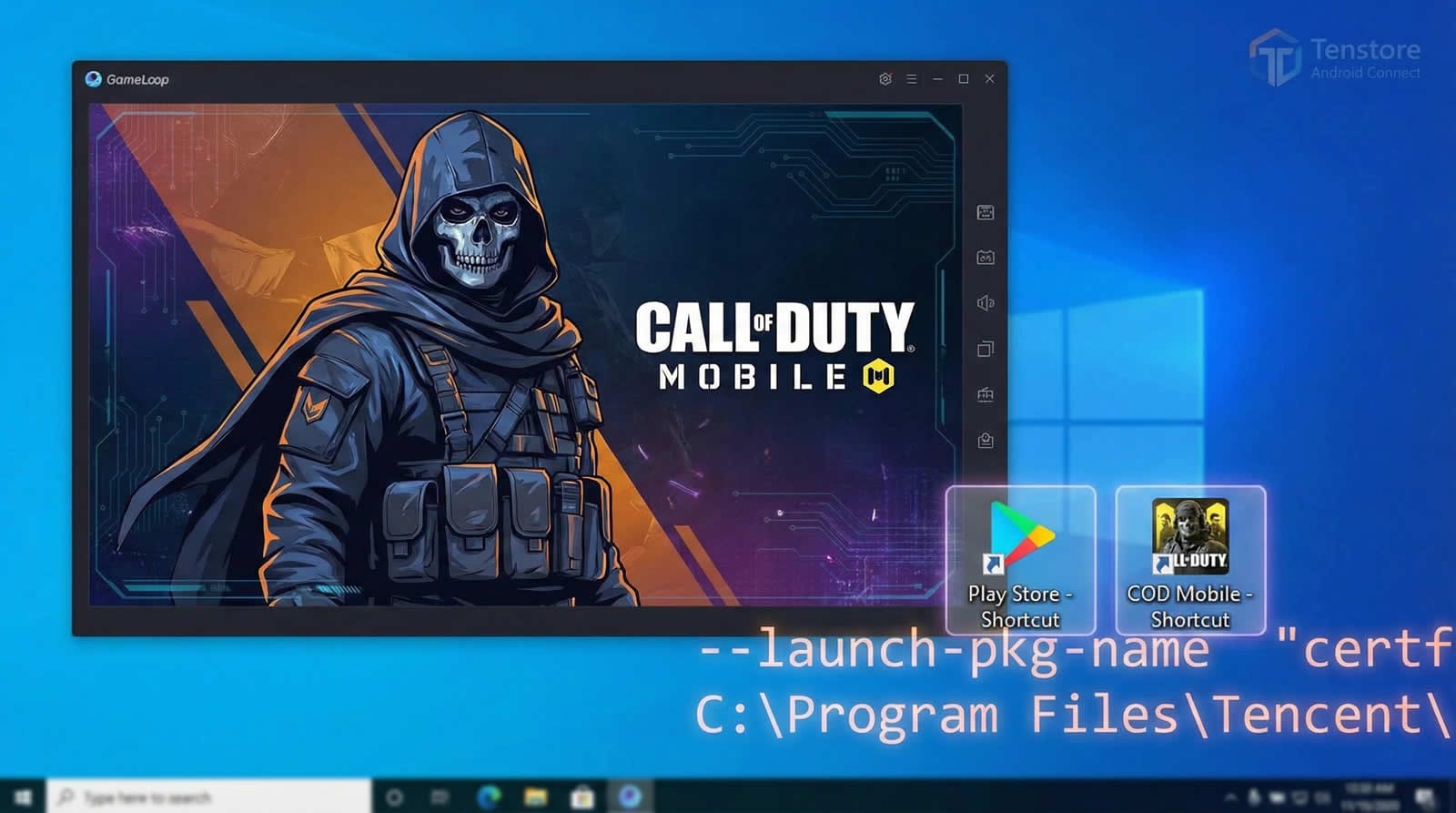
Despite the limitations in this new build, we previously found a reliable way to install and launch COD Mobile on Tenstore Android Connect, even with a limited keymap.
If you have not done the installation part yet, start here first:
Install Guide (required):
https://gameloophub.com/gameloop-emulator/tenstore-android-connect-codm-install-guide/
However, the real problem was always keymapping. COD Mobile requires too many actions for “extra key binds” to be a realistic solution. Without a proper smart keymap, the game is not truly playable.
That is where this tool comes in. Thanks to Napharcos, we now have a practical solution: a tool that generates and imports a working Smart Keymap for Multiplayer, Battle Royale, and DMZ, including support for different screen sizes and resolutions.
What this tool does
This tool automates the process of creating and importing smart keymaps for COD Mobile on Tenstore Android Connect.
Key capabilities:
- Generates smart keymaps for Multiplayer, Battle Royale, and DMZ
- Supports multiple screen sizes and resolution profiles
- Lets you customize key binds before applying
- Automatically imports the keymap configuration and launches the game
- Includes a one click rollback option to remove the imported configuration
- Enables 120 FPS for Call of Duty Mobile
Important note: HD resources must be downloaded in game
For the imported smart keymap to work correctly, you must download COD Mobile HD resources inside the game.
If HD resources are missing, some actions may not behave as expected.
Do this first:
Launch COD Mobile
Download the HD resource pack from in game downloads section
Then run the tool and apply the smart keymap
Requirements
• Windows 10 or Windows 11
• Tenstore Android Connect installed and working
• COD Mobile installed from Google Play Store and able to launch
• Administrator access recommended
• Virtualization enabled in BIOS or UEFI
Important: Emulator use may carry ban risk depending on game policy and detection behavior. You are responsible for how you use this.
Step 1: Download the tool
Download the tool from the GameloopHub download page:
Tool Download Page
After downloading:
Extract the archive
Run the tool as Administrator
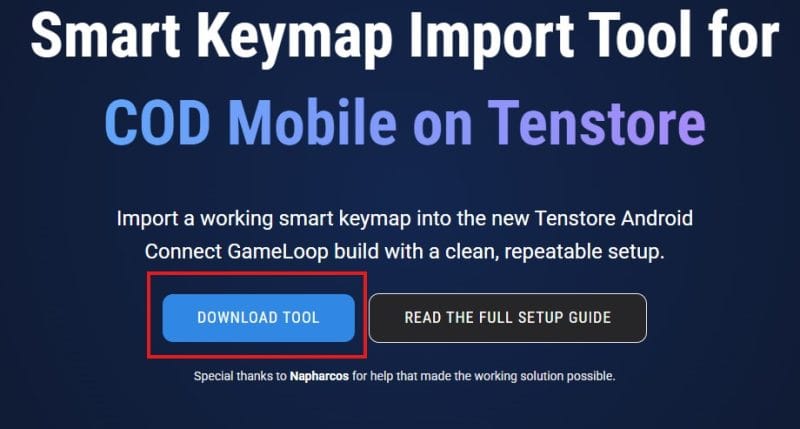
Tool download page
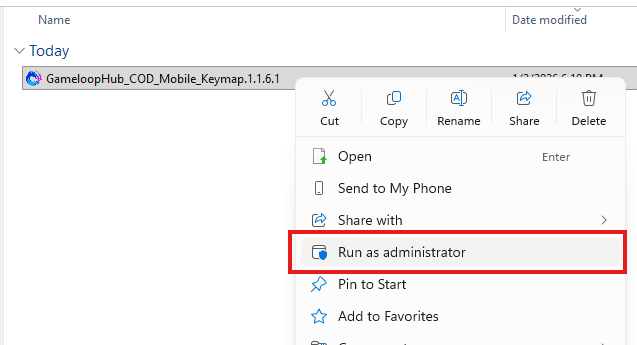
Extracted folder contents: Run as Administrator
Step 2: Select language and accept terms
When the tool starts:
Select your language
Continue
Accept the terms of use
You should then see a screen similar to this:
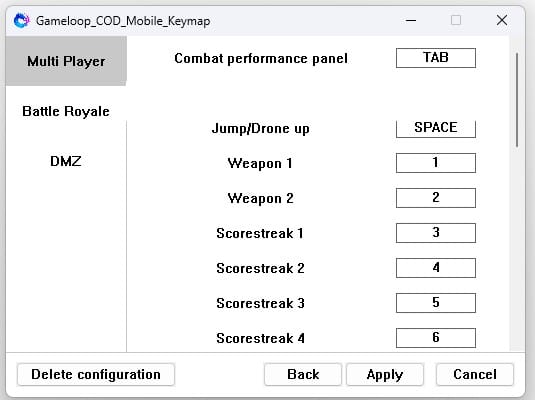
Tool main screen
Step 3: Customize your key binds for MP, BR, and DMZ
On the main screen, you can customize the keys that will be applied for:
• Multiplayer
• Battle Royale
• DMZ
Make your changes, then click Apply.
Recommendation: For the first setup, keep customization minimal. Start with the default smart behavior, then adjust a few critical actions after you confirm everything works.
Step 4: Apply the configuration (do not panic if the game crashes once)
After you click Apply, the tool will:
Import the smart keymap configuration
Launch COD Mobile automatically
On some systems, COD Mobile may crash during this first launch. This does not always mean the process failed. In some cases, the configuration continues in the background.
If a crash happens:
Wait 30 to 60 seconds
Launch COD Mobile again
If it still will not launch, open Windows Task Manager and end all GameLoop related processes
Start the game again
If keymapping still looks wrong, open the tool and click Apply again
This time, give the tool more time to complete the configuration
Step 5: Open Keymapping Settings, Select the Game Mode, and Set the Correct Keymap as Default
After the game launches, you must select the correct mode profile and set the matching imported keymap as the default. This ensures the smart behavior loads correctly for the mode you are playing.
With COD Mobile open, open the emulator keymapping settings as shown in the screenshot.
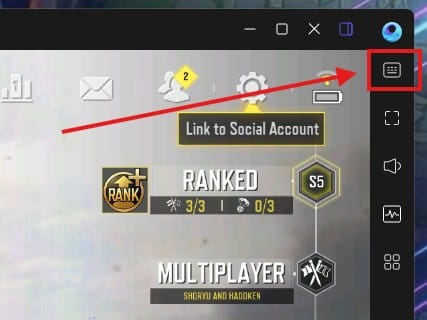
Where to open the emulator keymapping settings
In the keymapping panel, select the game mode from the section shown below.
Choose the mode you are going to play: Multiplayer or Battle Royale.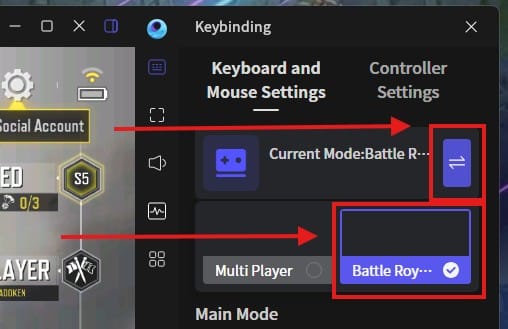
Game mode selector location
After selecting the mode, choose the keymap preset that matches your screen profile, then set it as Default.
Pick the preset that fits your setup best, then confirm it is selected as the default for that mode.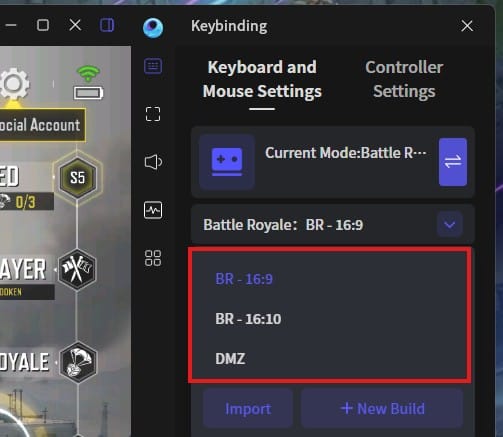
Selecting the correct keymap preset and setting it as Default
Tip: If you switch between MP, BR, and DMZ, repeat this step and confirm the correct preset is set as default for each mode.
Step 6: If you have keymap issues after the game opens
If the game launches but controls do not behave correctly:
• Run the tool again and click Apply one more time
• Fully close the emulator and reopen it
• Confirm HD resources are fully downloaded
• Make sure the correct mode profile is active (MP, BR, or DMZ)
Step 7: Remove the configuration (return to default)
If you want to remove the tool created keymaps for any reason:
Open the tool
Click Delete Configuration
This will:
• Remove the imported configuration
• Restore the default state
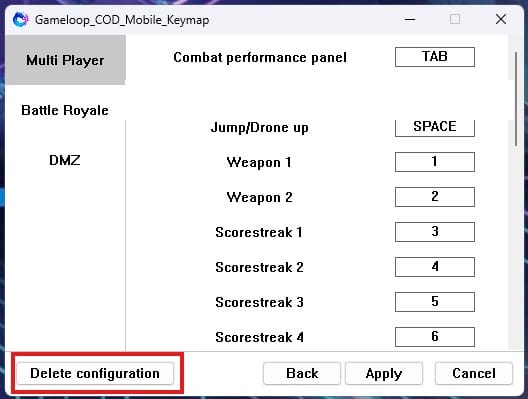
Delete Configuration button
Troubleshooting
The tool applied, but COD Mobile will not launch
• Confirm virtualization is enabled
• Run the tool as Administrator
• End GameLoop processes in Task Manager and try again
• Make sure you are using Tenstore Android Connect, not a classic build
The keymap appears, but smart behavior is missing
• Confirm HD resources are downloaded in game
• Apply the configuration again and wait longer before launching manually
• Restart the emulator fully after Apply
DMZ controls feel inconsistent
• Make sure the DMZ profile is selected and active
Apply works, but the preset does not show up in keymapping
• Reopen keymapping settings and reselect the imported preset
• Restart the emulator after import
• Run Apply again if needed
Final notes and credits
Until official COD Mobile support arrives on Tenstore Android Connect, this tool provides a realistic way to play with functional smart keymapping across MP, BR, and DMZ.
Special thanks to Napharcos for the help that made this working solution possible.
To avoid missing the release updates, new versions, and keymap improvements:
• Follow GameloopHub
• Subscribe to the GameloopHub YouTube channel
• Check the tool download page for changelogs and updates
Primary links:
• Tool Download Page: https://gameloophub.com/tools/cod-mobile-smart-keymap-tenstore-android-connect/
• CODM Install Guide for Tenstore Android Connect: https://gameloophub.com/gameloop-emulator/tenstore-android-connect-codm-install-guide/
• YouTube walkthrough: https://www.youtube.com/@GameLoopHub

Hello
I am using Tenstore Android Connect to play COD Mobile on my PC. I am experiencing a persistent system mouse cursor and dark bar appearing in the game, especially when raising my weapon, which makes gameplay difficult.
I have tried hiding the cursor using Windows settings and third-party tools, but the issue persists. It seems that the mouse is not fully captured by the emulator.
Could you please provide a solution or update to fix this issue?
Can not set up “Shift” button. Please fix it.
Can you describe your problem in more detail?