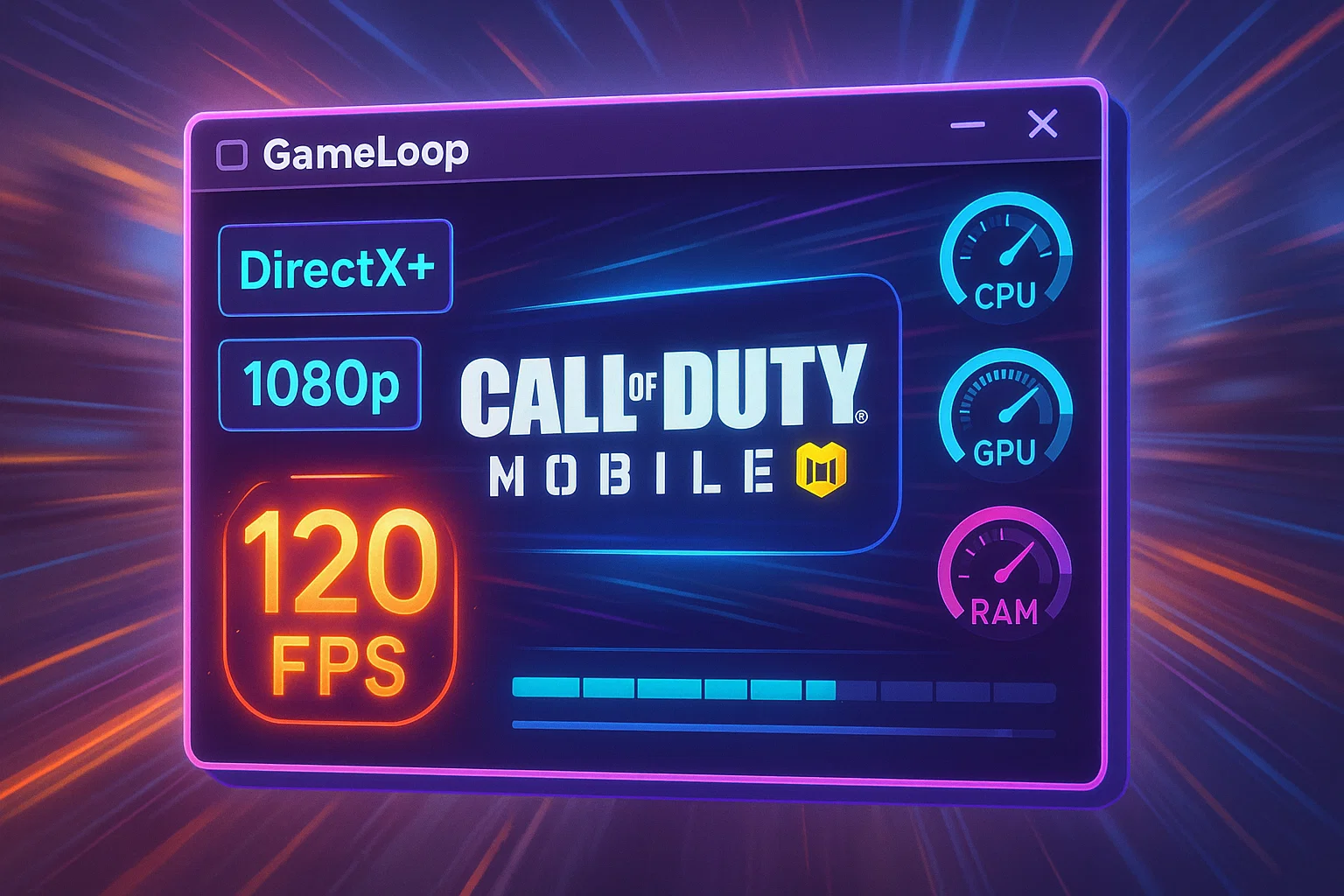
These settings are crucial for achieving optimal performance, especially in fast-paced games like Call of Duty Mobile or PUBG Mobile. Below is a breakdown and recommendation: Rendering Mode: DirectX+ Recommended: ✅ DirectX+ Why: Offers the
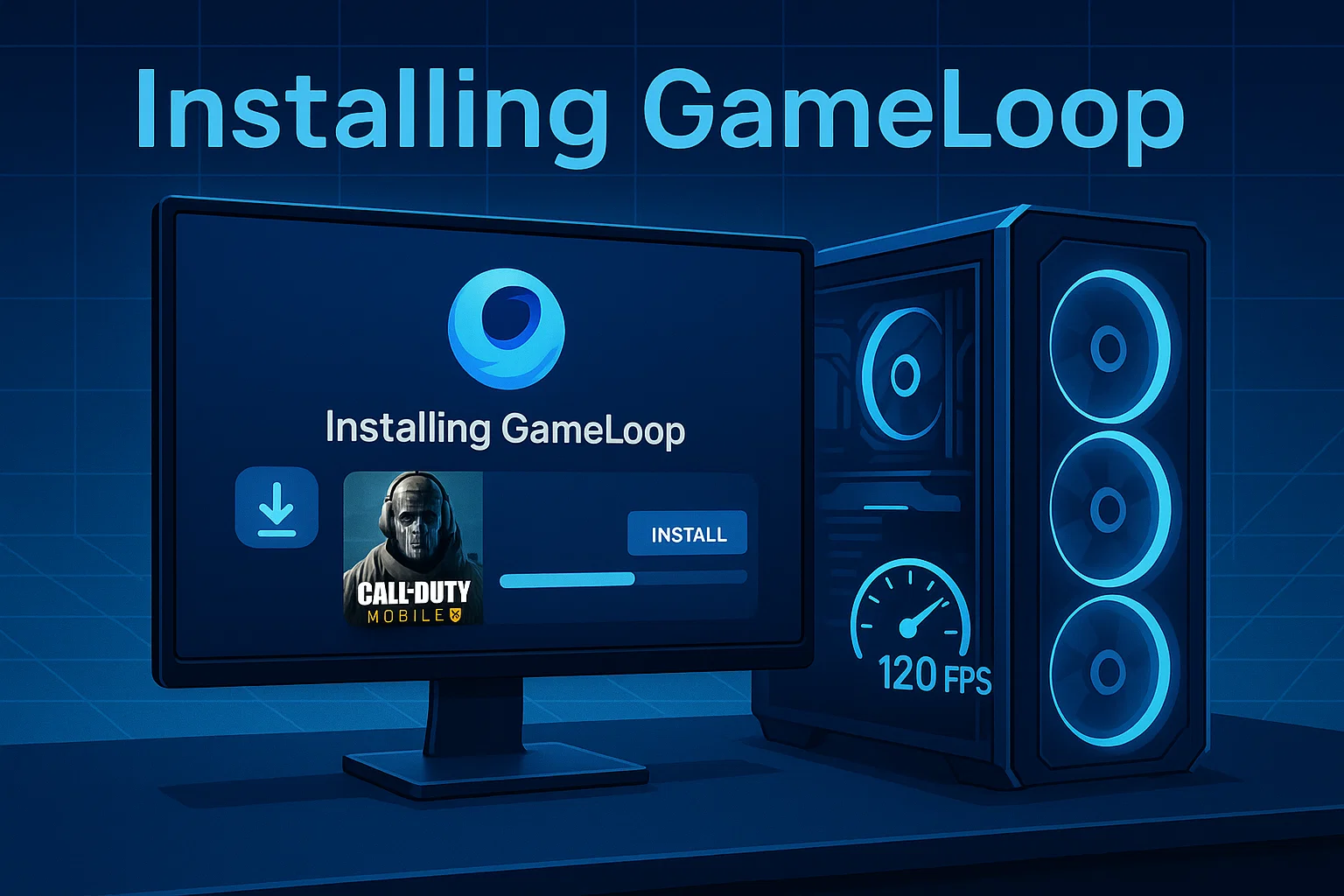
Why This Step Is Essential GameLoop is the official emulator for Call of Duty Mobile, PUBG Mobile, and other popular Android games on PC.To ensure maximum performance and compatibility, we recommend installing GameLoop on
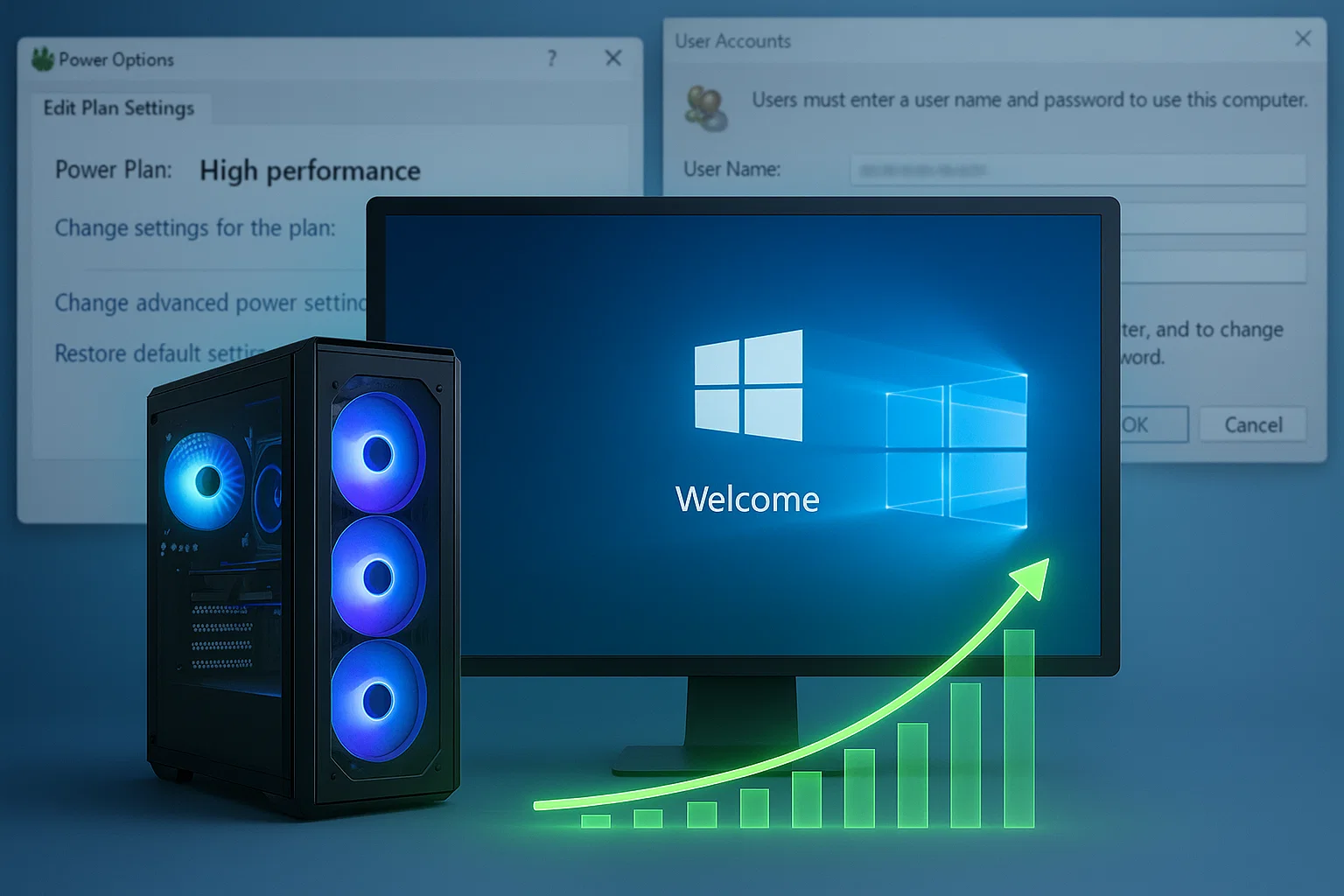
By enabling automatic login, you shave off unnecessary seconds at boot and avoid session delays that can stack up — especially on a streamlined, gaming-only system. Meanwhile, activating the High Performance power plan ensures your
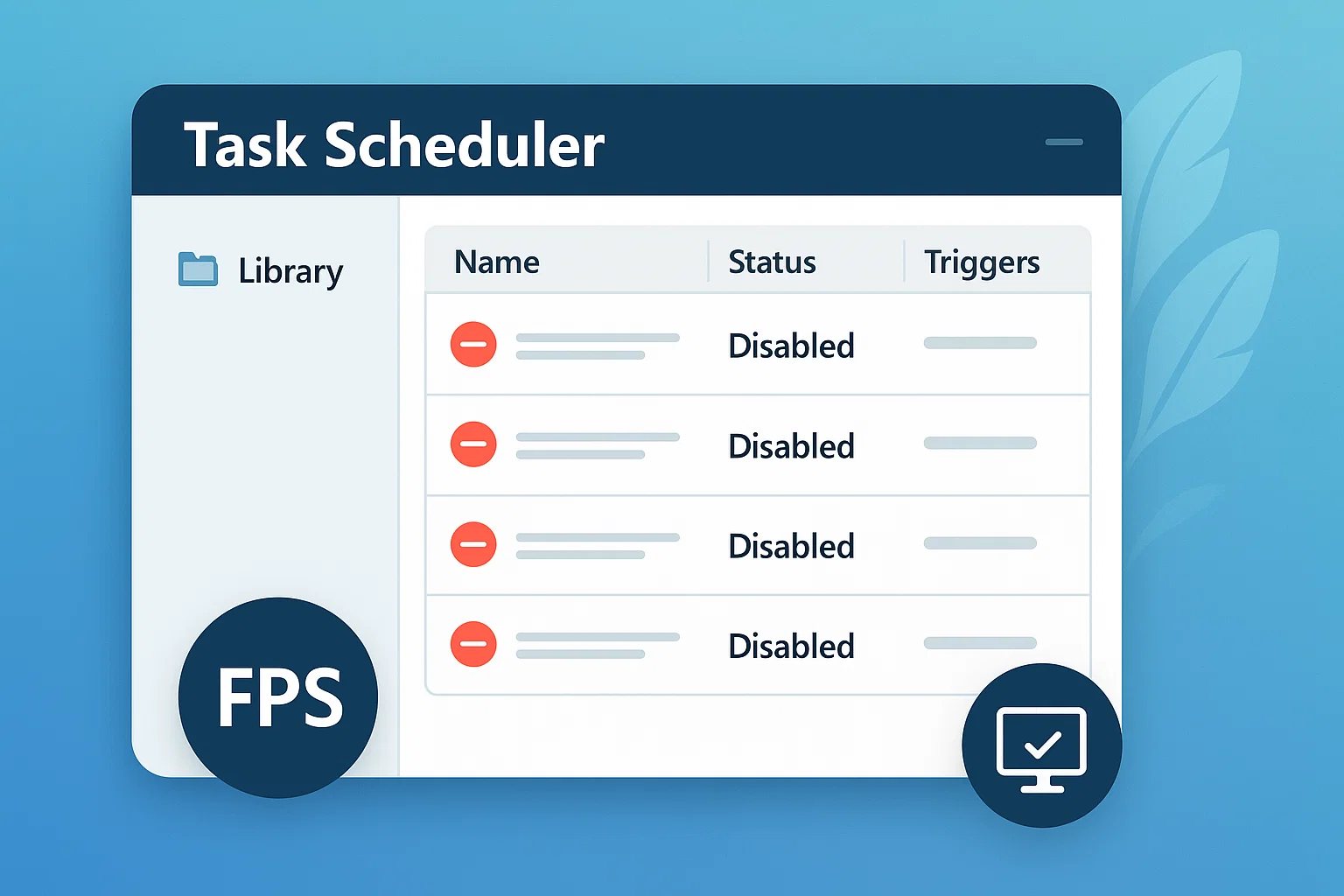
Windows automatically creates dozens of scheduled background tasks — from telemetry uploads to maintenance routines. While some of them are useful in office or general-purpose environments, they're completely unnecessary in a clean gaming-focused system,
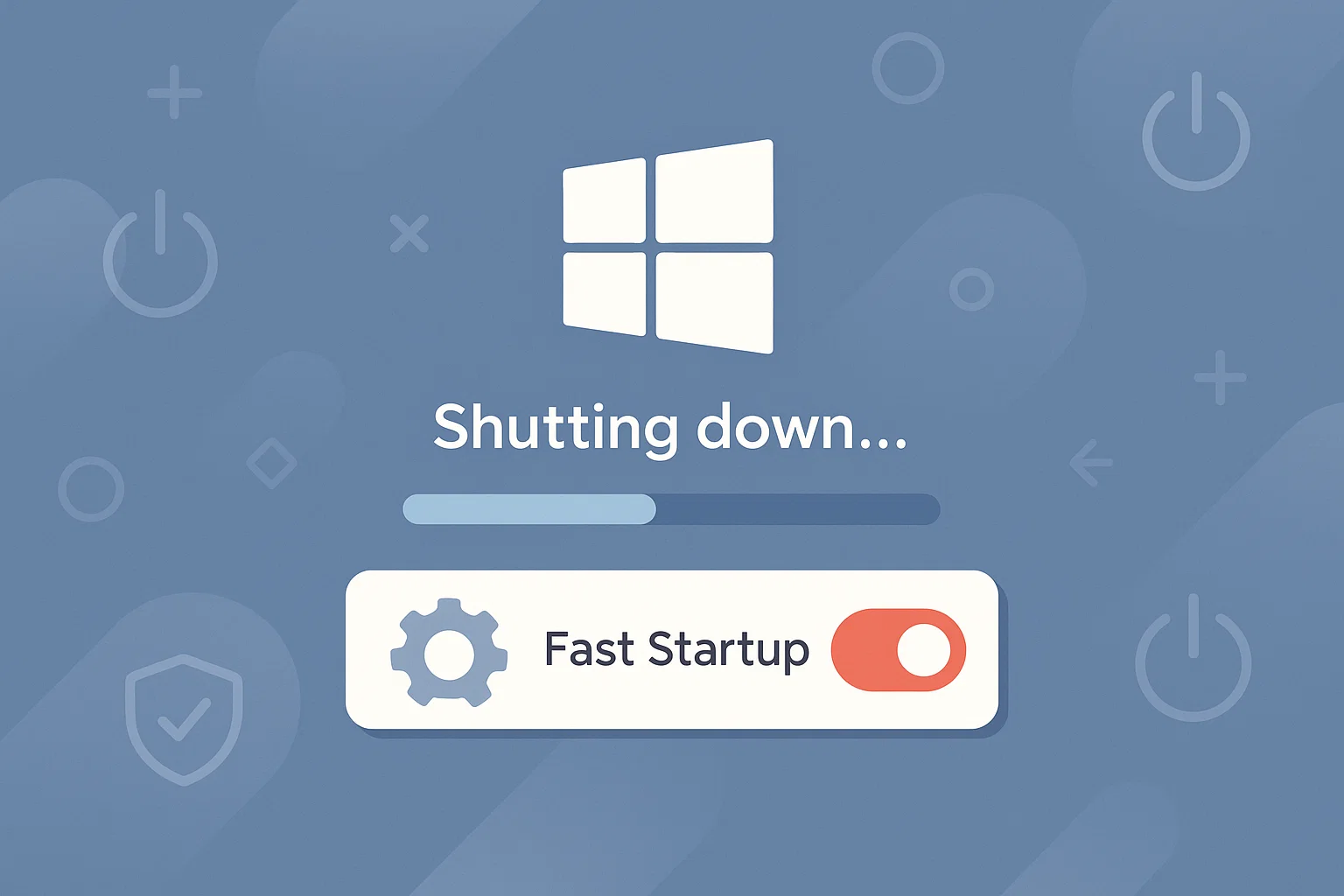
Fast Startup is a hybrid shutdown feature that combines elements of hibernation and traditional shutdown. While it aims to boot the system faster, it can often prevent drivers and critical services from resetting properly —
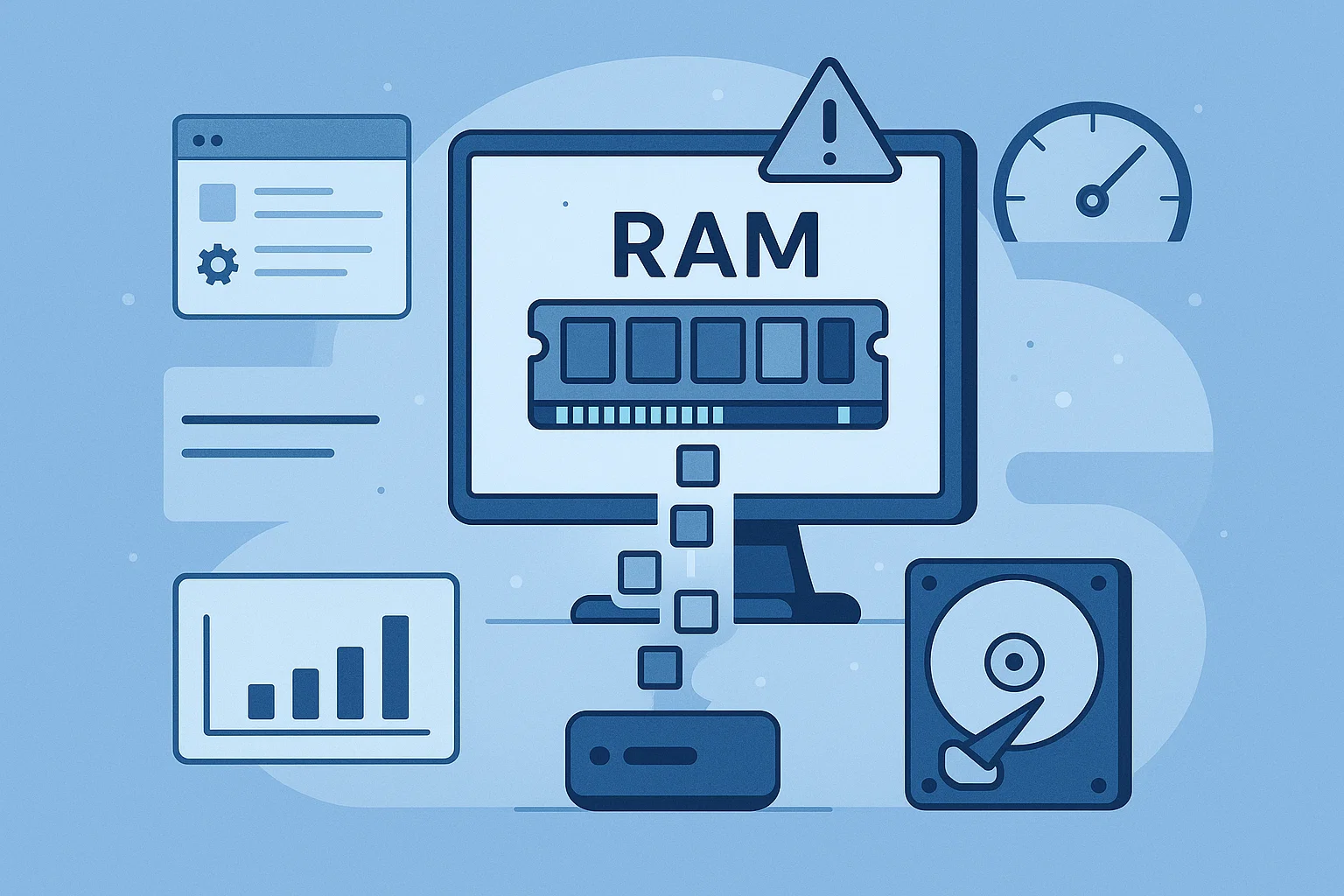
When your system runs out of physical RAM, it uses a reserved portion of the disk called the paging file (or virtual memory). By default, Windows manages this size dynamically — but on a
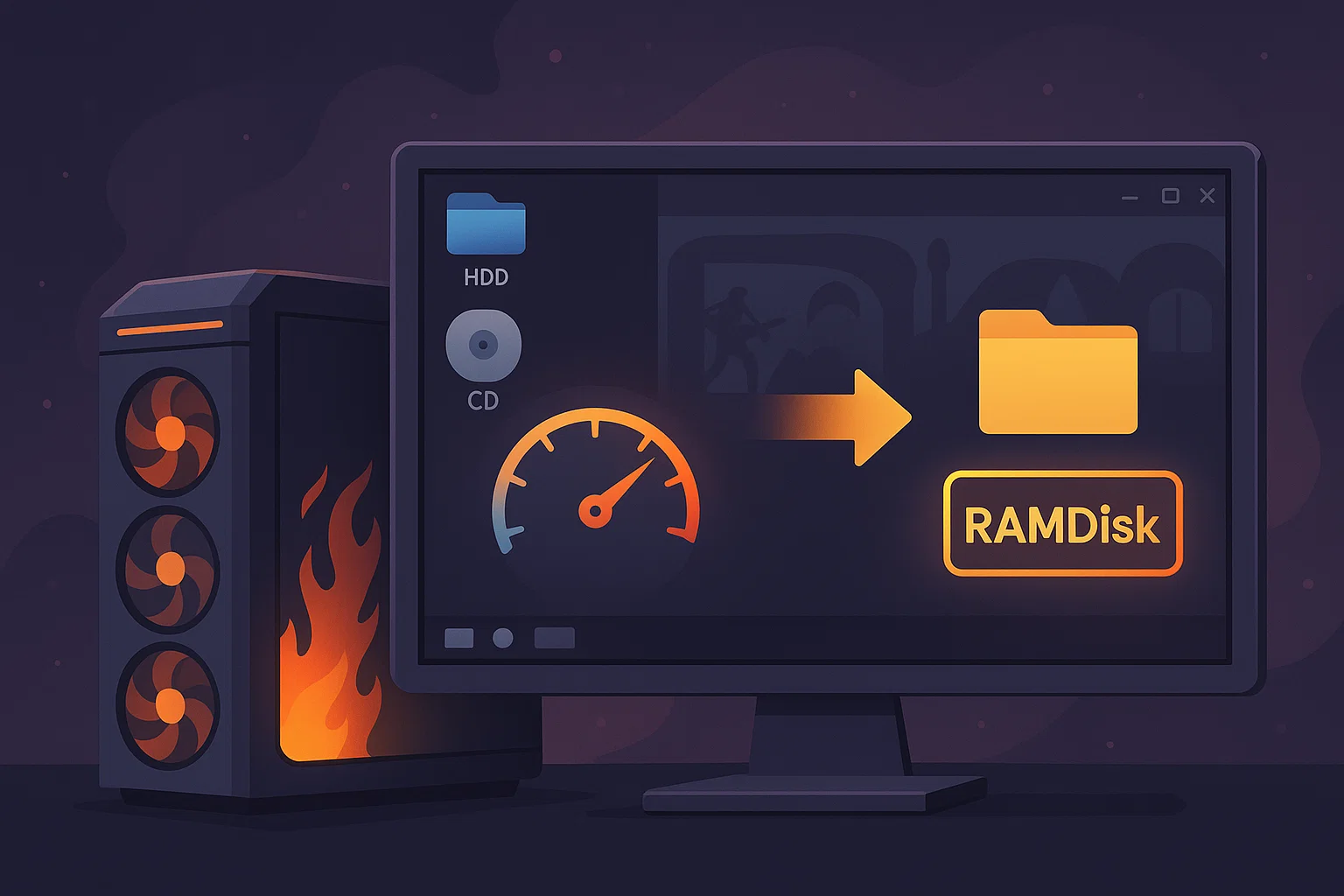
Relocating high-read/write directories such as Windows temp folders and GameLoop emulator cache to a RAMDisk can drastically improve system responsiveness, FPS stability, and map loading times. This guide walks you through the safest and
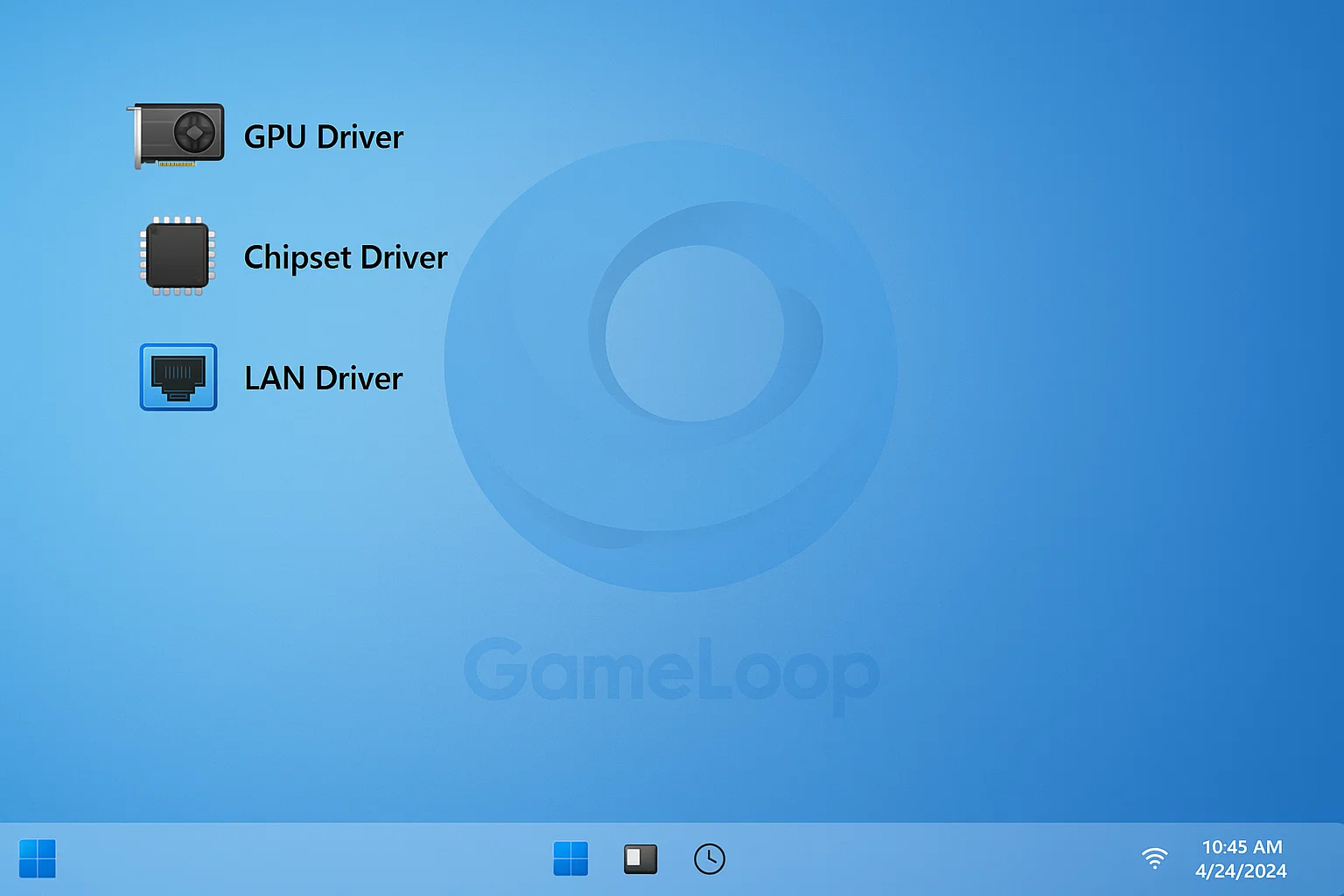
After completing your first boot configurations, the next step is to install only the essential drivers your system needs. Avoid using driver update tools, vendor bloatware (like Armoury Crate, Dragon Center, or Dell Update), and
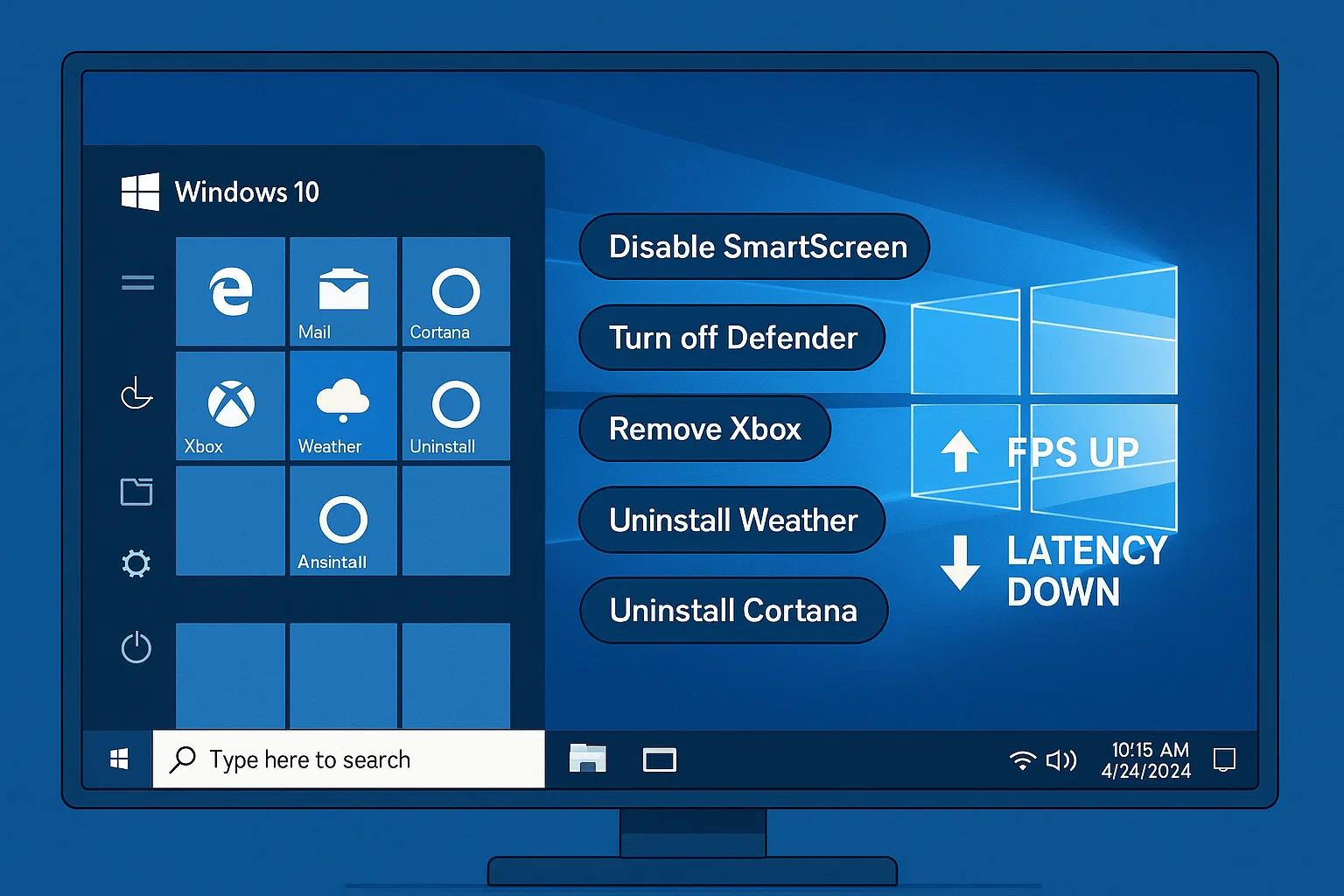
After a clean Windows installation, the first boot is your golden opportunity to take control of your system — before Windows tries to take control of you. By default, Windows 10 automatically enables dozens
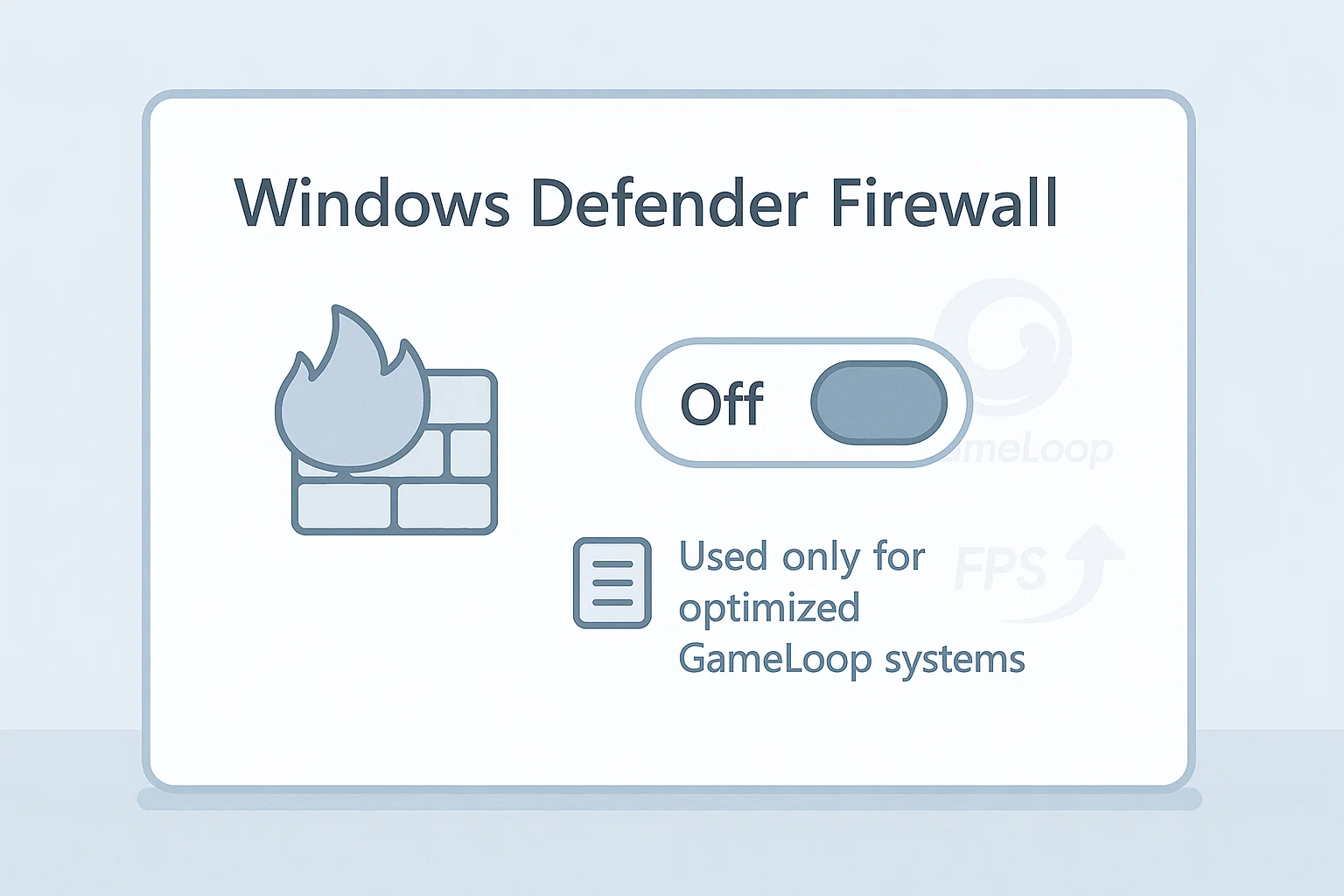
Windows Firewall continues to run in the background even after other security services are disabled. To completely eliminate background interference and unnecessary logging, we will permanently disable the Windows Defender Firewall using the Services panel

GameLoopHub is an independent community platform dedicated to mobile gamers who play via emulator.
We provide guides, forums, and a space to connect with like-minded players and streamers.
Not affiliated with Tencent or GameLoop.
© 2025 • gameloophub.com – All rights reserved • This platform is not affiliated with Tencent or the official GameLoop emulator. Built independently for the global emulator gaming community.