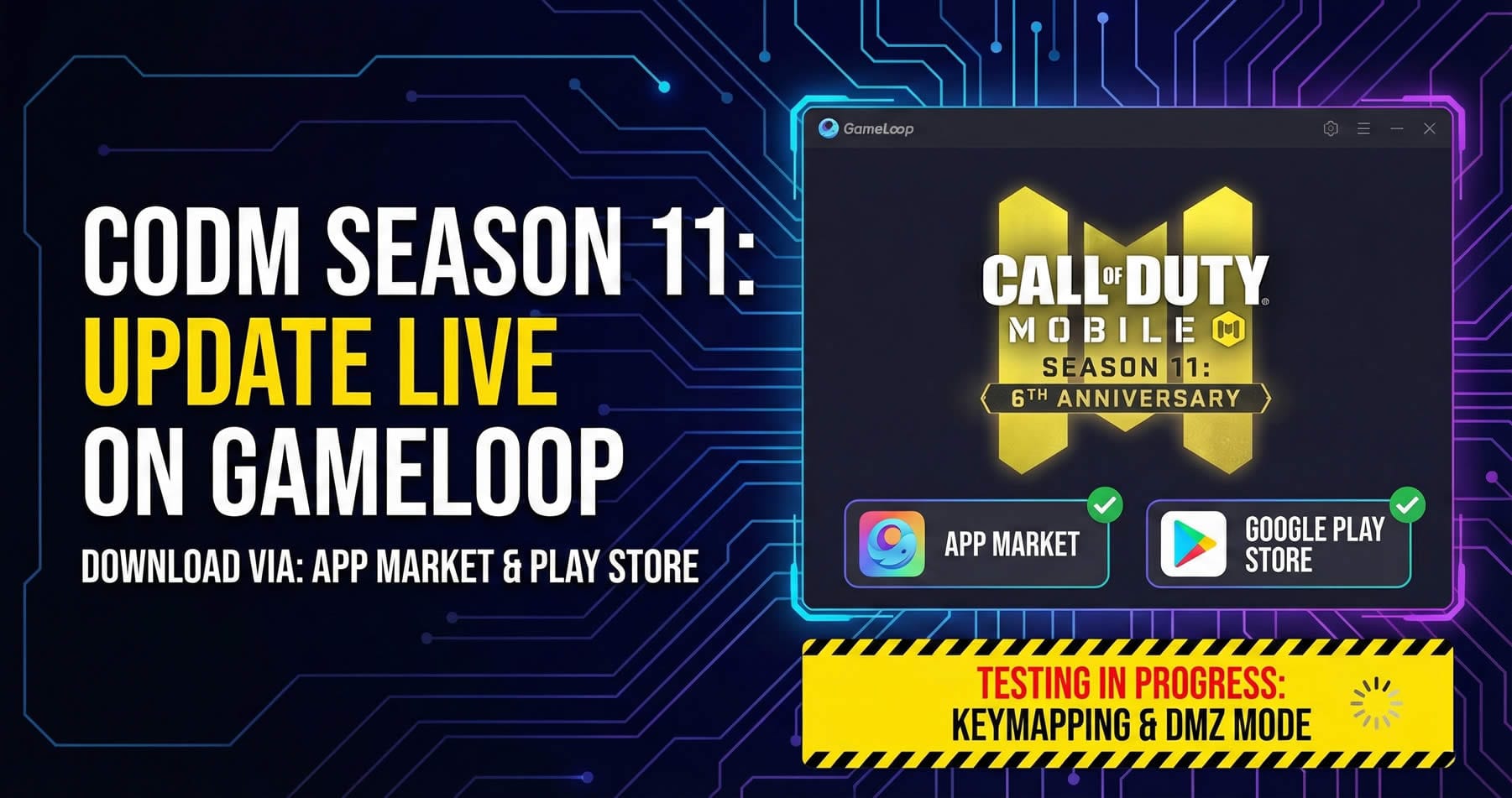
How to Install Call of Duty Mobile on Tenstore Android Connect
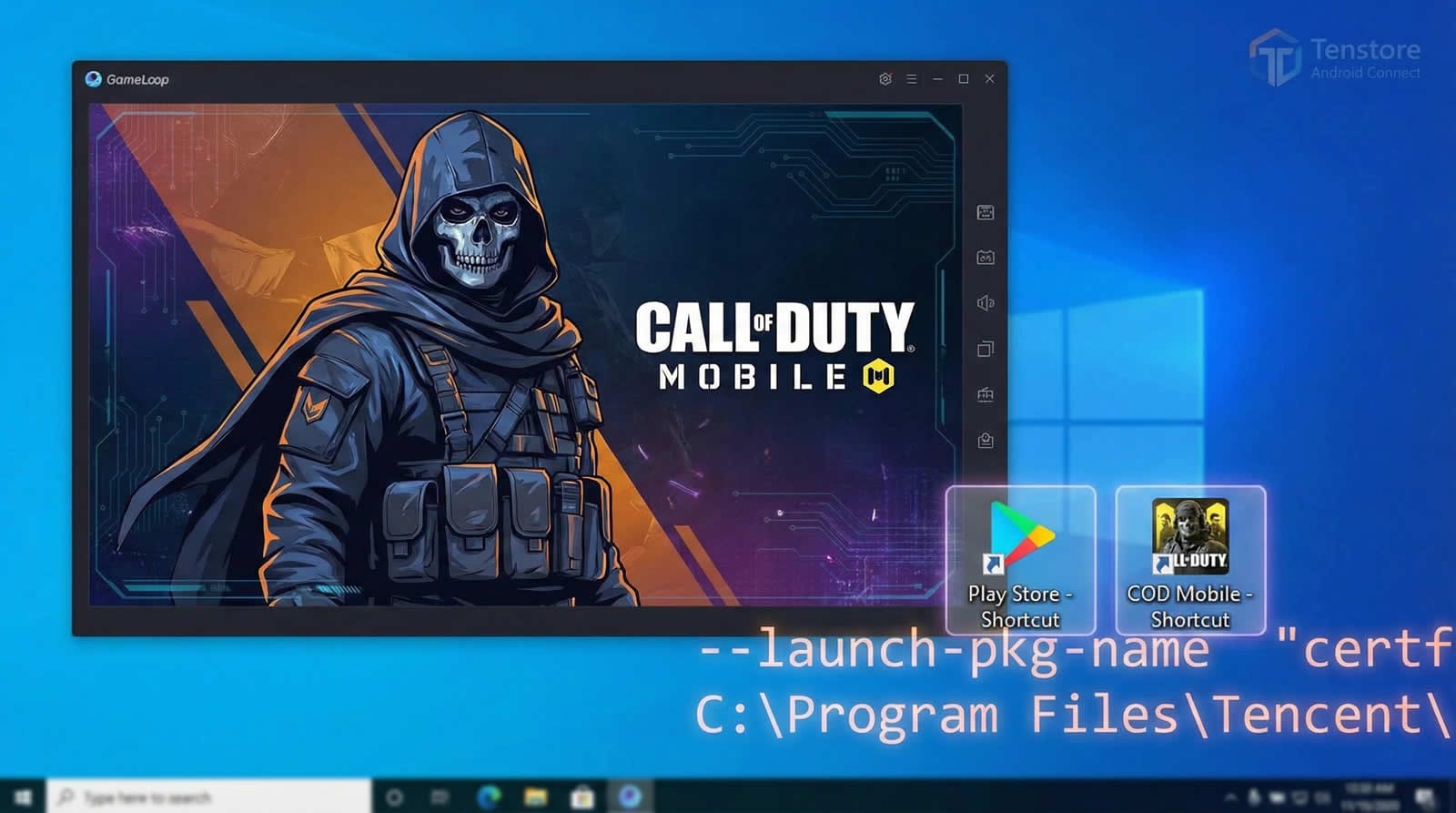
Install and Launch Call of Duty Mobile on Tenstore Android Connect (New GameLoop Build)
Tencent’s “Tenstore Android Connect” build that recently appeared under the GameLoop branding looks, feels, and behaves like a re packaged version of an emulator (by Tencent) Chinese users have had for years, now redesigned with GameLoop visuals, language options, and some feature restrictions. In my testing, it runs well enough to play, but keymap support is still the biggest friction point, and you should always consider the ban risk that comes with playing COD Mobile on any emulator environment.
Some users install Tenstore Android Connect from unofficial sources because it can make game installation easier. For security reasons, this guide focuses on the official GameLoop release that was published for Arena Breakout. The goal is to keep the process simple, repeatable, and as safe as possible.
Important Notes Before You Start
• Use the official installer only (GameLoop website or official CDN).
• Playing Call of Duty Mobile on emulators can carry ban risk depending on game policy and detection behavior. You are responsible for how you use this.
• This method relies on launching the Google Play Store and COD Mobile via Windows shortcuts that call GameLoopLauncher with package parameters.
What You Need
• Windows 10 or Windows 11
• Administrator access (recommended)
• Virtualization enabled in BIOS/UEFI
• Stable internet connection
• A Google account for Play Store sign in
Step 1: Download the Official Arena Breakout Build
Go to gameloop.com and download the Arena Breakout version of GameLoop.
If you prefer, use the official CDN link I provide here: (official CDN link)
This is the version referenced throughout the guide.
Step 2: Install GameLoop and Handle the Hyper V Prompt
Run the installer you downloaded.
Select your installation language and install location, then start the installation.
During setup, it may ask to enable Hyper V and prompt a restart.
If you are asked to restart, do it. After Windows boots, run the installer again if the setup did not continue automatically.
Step 3: When the Game Window Opens
After installation, a window may open and start downloading Arena Breakout resources.
You can do either of the following:
Close the window immediately if you only care about setting up COD Mobile first.
Or wait until Arena Breakout finishes downloading. Your choice.
Step 4: Create a Desktop Shortcut to Open Google Play Store
In this build, the built in app market and external APK installation are disabled. The good news is that Google Play Store is still present, even if it is not accessible from the usual UI.
We will open it by creating a desktop shortcut.
Create the shortcut
Right click on an empty area of your desktop.
Select New, then Shortcut.
In the location field, paste the command below.
Important: If your GameLoop install path is different, update the GameLoopLauncher.exe path accordingly.
Click Next, give it a name “Play Store”, then click Finish.
How to confirm the correct path
If the shortcut does not open anything, the most common cause is an incorrect install path. Check where GameLoopLauncher.exe is installed on your PC and replace the path in the shortcut.
Step 5: Install Call of Duty Mobile from Play Store (But Do Not Launch It Yet)
Double click your new Play Store shortcut.
Sign in to your Google account.
Search for Call of Duty Mobile and install it.
After it finishes installing, do not launch the game from inside Play Store.
In my case, launching COD Mobile directly from Play Store caused issues. The cleanest flow was to install via Play Store, then launch via a dedicated shortcut.
Step 6: Create a Desktop Shortcut to Launch Call of Duty Mobile
Now we will create a second shortcut, similar to the Play Store one, but targeting COD Mobile’s package name.
Right click on an empty area of your desktop.
Select New, then Shortcut.
Paste the command below.
Important: If your install path is different, update the GameLoopLauncher.exe path accordingly.
Click Next, name it “COD Mobile”, then click Finish.
Now you can launch COD Mobile directly through this shortcut.
Step 7: Import the Working Keymap (Battle Royale Version)
Before you waste time setting everything manually while in game, import a keymap that at least covers core movement and free look properly.
Open COD Mobile using your COD Mobile shortcut.
Open the Keymapping settings in the emulator (see the screenshot section below).
Use the Import option and select the TXT keymap file.

Keymap download: (keymap TXT file)
Then set it as the default keymap.
Note: This keymap is currently built for Battle Royale. Other modes will be added later. You may still need to bind extra actions yourself (vehicle entry, helicopter ascend/descend, special interactions, etc.).
Step 8: Optional Emulator Settings (Render Mode, Resolution, Performance)
If you want to adjust render mode, resolution, or performance settings, you can open the emulator settings panel.
Recommended starting point:
• Use the render mode that is most stable on your system (test both options if available).
• Keep resolution reasonable for stability first, then increase gradually once crashes are under control.
• If you experience stutters, reduce resolution before changing many other variables.
Troubleshooting
Shortcut opens nothing
Most likely causes:
• Wrong GameLoopLauncher.exe path
• Missing quotes around the path
• GameLoop install is incomplete
• Run the shortcut as Administrator once to test
Play Store opens but you cannot sign in
• Ensure Windows date and time are correct
• Disable VPN temporarily and retry
• Restart GameLoop completely and try again
• If you have multiple Google accounts, try the simplest login flow first
COD Mobile installs but crashes on launch
• Try launching only via the COD Mobile shortcut, not from Play Store
• Verify Hyper V and virtualization are enabled
• Reduce emulator resolution and try again
• Update GPU drivers
Keymap import does not work or does not appear
• Confirm you are importing the correct TXT file for this emulator build
• Re open keymap settings and re select the imported preset as default
• Some builds cache mappings; restart the emulator after importing
Final Notes
This build is promising in terms of visuals and smoothness, but keymapping is still the main problem. If Tencent releases an official COD Mobile keymap for this environment, it will become far more practical for everyday play. Until then, if you do not want to spend time binding many actions manually, the older 32 bit GameLoop experience may still feel more reasonable.
If you found this helpful, I will keep updating the guide and expanding the keymap coverage mode by mode.